
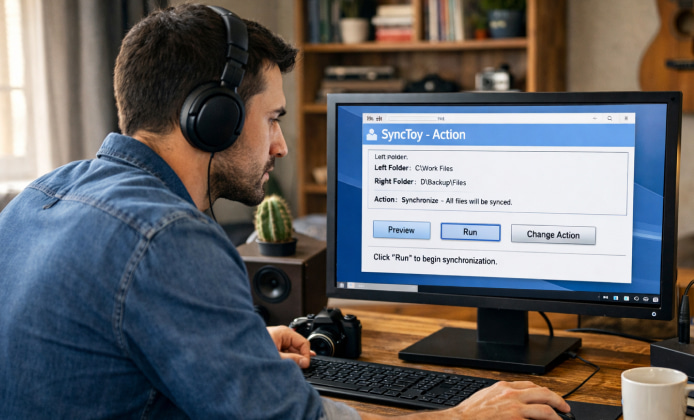
Keeping files consistent across devices and drives sounds easy until duplicates, outdated copies, or accidental deletions appear. Sync utilities exist for that exact reason: they reduce manual copying, help you maintain tidy archives, and make routine backups less stressful. For many people, SyncToy app can still handle basic folder mirroring when set up carefully.
What SyncToy Does (In Plain Terms)
SyncToy is a classic Windows utility designed to synchronize two folders: a “Left Folder” (source) and a “Right Folder” (destination). You choose how changes flow between them, then run the configured action (often called a folder pair). It’s especially useful for:
- Copying new photos from a working folder to an external drive
- Keeping a laptop project folder aligned with a desktop folder
- Maintaining a clean “backup mirror” that updates on demand
Good syncing is less about speed and more about predictability: you should always know what will be added, updated, or removed before you run it.
Sync Modes You Should Understand First
Most SyncToy-style tools revolve around a few core behaviors. If you’re evaluating or using it, these concepts matter more than any button in the interface:
| Mode | What it generally means | Best for |
|---|---|---|
| One-way mirror | Changes propagate from source to destination, typically including deletes depending on configuration. | External-drive backups where the destination is a mirror. |
| Two-way sync | Updates flow both directions so either folder can be edited. | Working across two PCs when you edit files in both places. |
| No-delete style | Newer files copy over, but deletions might not be mirrored. | Cautious backups where you prefer not to remove anything automatically. |
In practice, the safest starting point is a conservative setup where deletes are not immediately propagated, especially when you’re syncing important documents.
Installing and Running It on Modern Windows
Even though many people use newer tools today, SyncToy still shows up in legacy workflows and internal checklists. On modern PCs, SyncToy app on Windows 11 may require running with compatibility options to behave predictably.
If you run into issues, try these common stability steps:
- Run the executable as an administrator (only if you trust the source).
- Use compatibility settings if the UI fails to render correctly.
- Keep paths short and avoid syncing system folders (like Windows or Program Files).
- Test with a small sample folder before touching critical directories.
Where to Get It and How to Validate the File
Because the app is older, you’ll often find it via archives or third-party repositories rather than a modern app store. If you want a safer workflow, you can download SyncToy app from reputable archives and verify checksums first.
Here are sensible precautions that reduce the risk of tampered installers:
- Prefer well-known software libraries with clear version history.
- Scan the installer with your security tools before opening it.
- Keep the installer in a “Utilities” folder with notes about where you obtained it.
- After installation, confirm the program behaves as expected using a non-sensitive test directory.
Before installing, a SyncToy app download should be scanned and stored with your other utilities.
Setting Up a Folder Pair the Right Way
The setup experience is straightforward, but outcomes depend heavily on the choices you make during configuration. Use this checklist as a reliable baseline:
- Pick your source folder: the one you edit day-to-day.
- Pick your destination folder: typically an external drive, network share, or secondary internal disk.
- Select a sync method: choose a conservative method if you’re unsure.
- Preview changes: always preview before running, especially if deletions might occur.
If you are syncing work files, treat the first run like a rehearsal: preview, confirm, and only then execute.
Scheduling Sync Runs (Without Leaving It to Memory)
Many users prefer scheduled syncing so it happens automatically. A common approach is to configure your folder pairs, then use Windows Task Scheduler to trigger runs at convenient times (for example, daily in the evening). This is particularly helpful when your backups should happen regardless of whether you remember to click “Run.”
Tips for reliable scheduling:
- Schedule when the destination drive is usually connected.
- Set the task to retry if it fails (useful for laptops that sleep).
- Keep a simple log file so you can confirm success after each run.
Realistic Use Cases That Still Make Sense
Syncing isn’t one-size-fits-all. Here are scenarios where a lightweight tool can remain useful:
- Offline backups: no cloud dependency, no subscription pressure.
- Portable workflows: a USB SSD can carry a mirrored set of essential folders.
- Small teams: quick duplication of reference files to a shared drive.
In lightweight backup routines, a free SyncToy app can be attractive, especially for offline use.
Common Pitfalls and How to Avoid Them
Most sync problems come from mismatched expectations. Avoid these frequent mistakes:
- Assuming “sync” always means “safe”: two-way syncing can overwrite changes if you’re not careful.
- Mirroring deletions unintentionally: if you delete a file on the source, a mirror setup may delete it on the destination too.
- Syncing active databases: files that change constantly can corrupt if copied mid-write.
- Ignoring previews: a preview is your last line of defense against large unintended changes.
Smart Pairing with Built-In Windows Tools
SyncToy-style syncing becomes more robust when combined with sensible organization and built-in features. To keep costs at zero, many hobbyists rely on SyncToy app for free alongside built-in Windows tools.
Examples of helpful pairings:
- Use File History for continuous protection of key libraries.
- Use a sync run for clean mirrored snapshots on an external disk.
- Keep an “Archive” folder that is append-only (no automatic deletes).
When You Might Prefer an Alternative
If you need real-time syncing, conflict resolution across multiple devices, or cloud-first collaboration, modern solutions may be a better fit. However, if your goal is simple, understandable folder copying with minimal overhead, this style of utility can still be enough.
When bandwidth is limited, choosing a SyncToy app free to download can help you set up syncing without subscriptions.
Quick Start Checklist
- Decide whether you want one-way mirroring or two-way syncing.
- Test with a small sample folder first.
- Preview changes before every run until you trust the configuration.
- Schedule runs only after your first few manual runs are stable.
If you’re exploring older utilities for a straightforward workflow, a SyncToy app for free can be a practical stepping stone while you decide whether you need a more advanced syncing platform.
For users comparing sources, a SyncToy app download can vary by archive and packaging, so always treat each installer as unique and validate it before use. Finally, if you’re building a lightweight toolkit for backups, a SyncToy app free to download fits neatly into a “small but dependable” approach, especially when you prioritize clarity over complexity.


 Install SyncToy Guide: Set Up Reliable Folder Sync on Windows
 SyncToy App: Practical Folder Syncing for Clean Backups and Simple Workflows
 SyncToy in 64-bit Environments: Practical File Synchronization for Modern PCs
 SyncToy for Free: A Practical Guide to Simple Folder Sync on Computer
 What Is SyncToy and How to Use?
 Best Apps Similar to SyncToy