
Keeping two folders identical sounds simple until you start juggling photos, project files, and backups across drives. This guide walks you through a clean, practical setup so you can sync data confidently, reduce duplicates, and avoid accidental overwrites.
What SyncToy Does and When It Helps
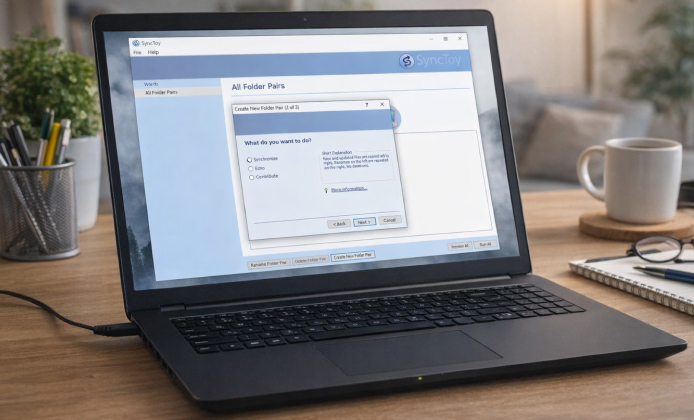
SyncToy is designed for straightforward folder-to-folder synchronization, which makes it useful for USB drives, external HDD/SSD backups, and mirroring a working folder to an archive. Before you begin, decide what “sync” should mean for your workflow: one-way copying, two-way updates, or a strict mirror.
- Echo (one-way): copies changes from a source folder to a destination folder.
- Synchronize (two-way): updates both folders so changes travel in either direction.
- Contribute (one-way, no deletes): copies new/updated files but doesn’t delete from the destination.
Pre-Install Checklist
These quick checks prevent the most common “why didn’t it copy?” issues and keep your first run predictable.
- Close programs that actively write into the folders you plan to sync (editors, photo apps, download managers).
- Confirm you have stable drive letters for external disks (Disk Management can help assign a consistent letter).
- Create a small test pair first (a few files), then scale up after you’re happy with the results.
A safe habit is to run your first sync on a small sample folder, review the preview of changes, and only then apply the same settings to your full library.
Getting the Installer and Preparing Windows
To avoid confusion with similarly named tools, choose a reputable download source and verify you’re getting the correct package. Many people start by locating a SyncToy installer that matches their Windows environment and includes the components it depends on.
If you’re setting this up for the first time, it’s smart to create a restore point and ensure Windows updates are not mid-install, because background changes can interrupt permissions or restarts.
Step-by-Step Installation
When you’re ready, you can follow a simple path where you install SyncToy using default options first, then adjust advanced preferences after the tool launches successfully.
- Run the setup file as an administrator if your PC uses restricted permissions.
- Accept the license terms and keep the default install path unless you have a specific reason to change it.
- Finish the setup, then launch the program once to confirm it opens without errors.
Some users prefer a lightweight setup approach and look for a SyncToy for free install option that still comes from a trustworthy distributor, since unofficial repackages can introduce unwanted extras.
Create Your First Folder Pair
Folder pairs are the core concept: you choose a “Left Folder” and a “Right Folder,” then select an action. For example, you might set Left as your working documents folder and Right as an external drive backup.
On the first run, the quickest way to validate your configuration is to preview changes before committing them. This helps you spot large deletions, unexpected renames, or files you forgot were included.
Recommended First Pair (Beginner-Friendly)
- Left Folder: a small “Test Sync” folder on your desktop
- Right Folder: a matching folder on another drive
- Action: Echo or Contribute for safer one-way results
Download-and-Install Workflow for a Smooth Setup
If you’re helping someone else set this up, a clear checklist reduces mistakes: first perform a SyncToy app download and install sequence, then immediately create one test pair to verify everything works before adding more folders.
Configuration Tips That Prevent Data Loss
Small choices can have big consequences when you’re syncing thousands of files. These settings and habits are simple but effective.
- Use “Preview” every time before you click “Run,” especially if drives were disconnected.
- Prefer one-way actions for backups, because two-way sync can propagate deletions.
- Keep folder paths stable by using consistent drive letters for external storage.
- Start with “Contribute” if you want to avoid deleting anything in the destination.
Quick Reference Table
This table summarizes common folder-pair goals and a sensible action to start with.
| Goal | Suggested Action | Why It Fits |
|---|---|---|
| Backup work files to an external drive | Echo | One-way copy keeps the backup aligned with your main folder |
| Keep an archive that never deletes | Contribute | Adds and updates files without removing older items |
| Maintain the same files on two PCs | Synchronize | Two-way updates help when you edit files on either machine |
Troubleshooting Common Issues
If you run into problems, these are the most frequent causes and fixes.
- Folder not found: check if an external drive letter changed and update the pair paths.
- Access denied: run the app as administrator, and confirm you have permissions on both folders.
- Unexpected deletions in preview: switch from Synchronize to Echo or Contribute for backup-style behavior.
- Slow performance: exclude huge temporary folders and avoid syncing active download directories.
Finishing Touches and Safe Routine
Once your first pair behaves exactly as expected, scale up gradually by adding one new pair at a time and validating the preview results. Many people treat the tool like a maintenance routine, where a quick weekly check is enough for most personal workflows.
After everything is stable, you can treat it like a lightweight utility and simply install SyncToy app on additional PCs using the same folder-pair logic for consistency.
Finally, document your folder-pair choices in a small note (which folder is “Left,” which is “Right,” and which action you picked), so you can revisit the setup months later with zero guesswork. When the setup is complete, a SyncToy app install becomes just the first step in a repeatable backup habit that keeps your files organized and recoverable.

 Install SyncToy Guide: Set Up Reliable Folder Sync on Windows
 SyncToy App: Practical Folder Syncing for Clean Backups and Simple Workflows
 SyncToy in 64-bit Environments: Practical File Synchronization for Modern PCs
 SyncToy for Free: A Practical Guide to Simple Folder Sync on Computer
 What Is SyncToy and How to Use?
 Best Apps Similar to SyncToy